
Teachers' handbook: Numsprite for Teachers in class and for homework
Numsprite for Teachers is free for teachers and students: open a class, set practice as homework, warm up or wrap up a lesson with a class game, and find who needs help from the class overview. Nothing to download, and students need no email.
1. Getting started (about 5 minutes)
- 1Open numsprite.com/teacher, tap “Teacher sign-in” and sign in with Google.
- 2The first time, confirm you have parents' consent, and set the name students see, such as Ms Chan.
- 3Tap “+ New class”, type the class name and tap “Create class”. Up to 40 students a class.
2. Students joining
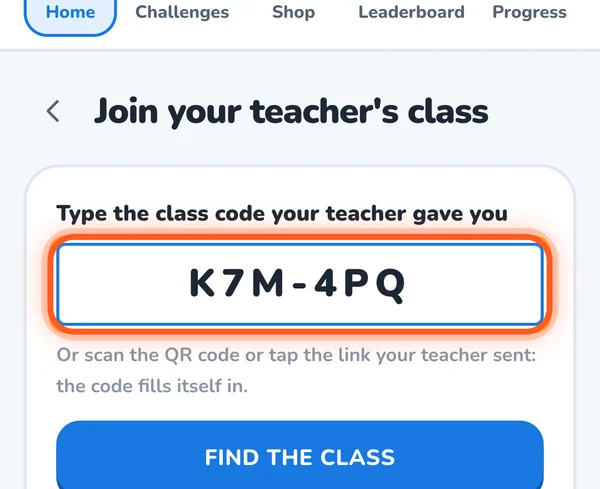
Students sign in to Numsprite first (Google or a username, no email needed), then join any of three ways:
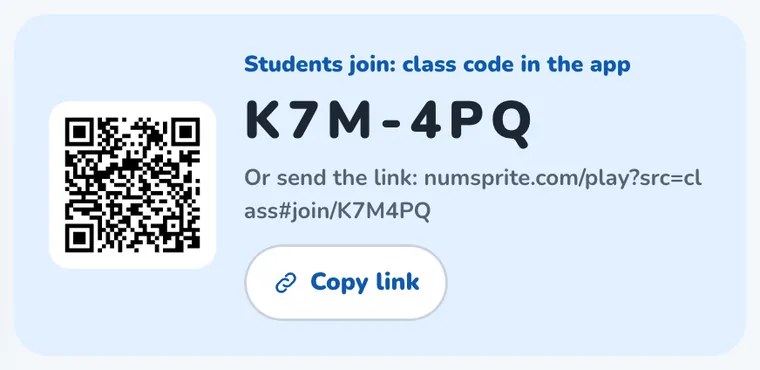
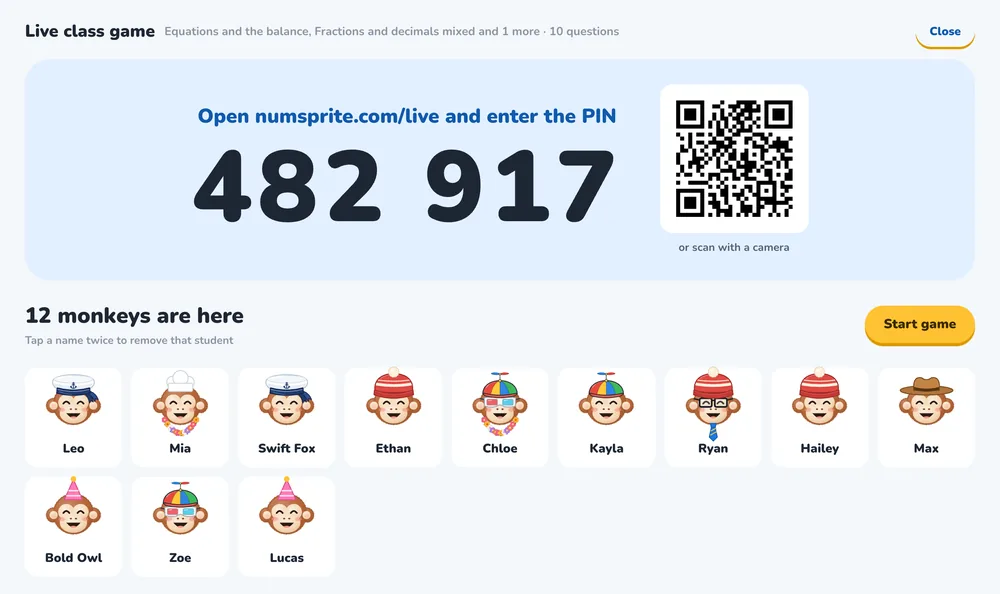
- Scan the QR code: easiest projected in class.
- Send the link: tap “Copy instructions for students” and paste them into the class group.
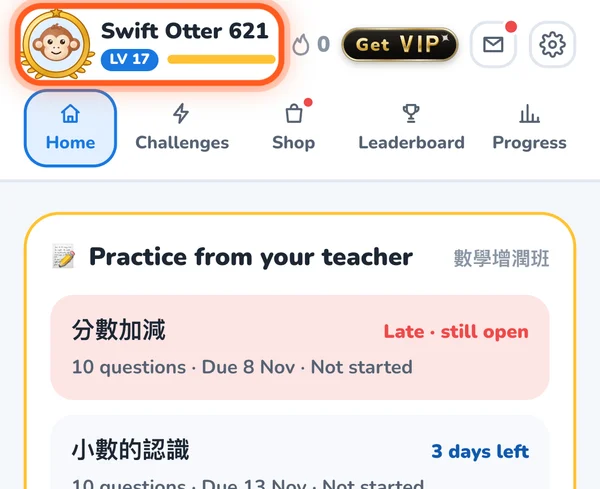
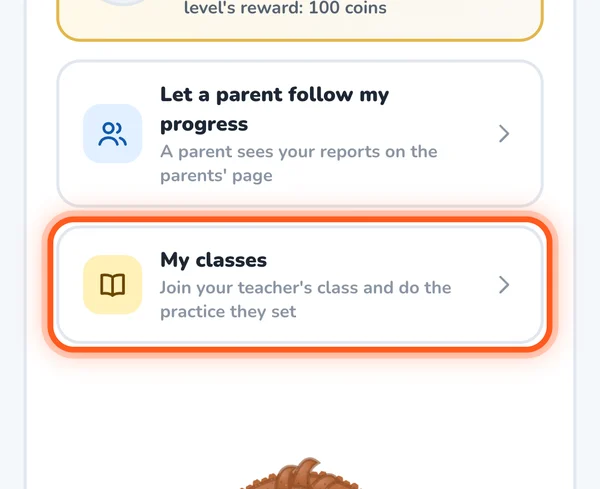
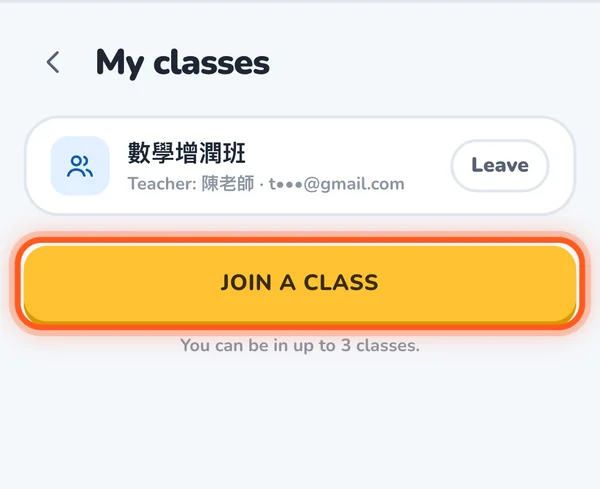
- Type the code: their own picture, top left → “My classes” → “Join a class” → the 6-character code → “Find the class” → “Join this class”.
On joining, students see what the teacher can see: nickname, level, homework results and accuracy by topic. They can leave any time from “My classes”.
3. Setting practice
- 1In the class, tap “+ Set practice”.
- 2Choose topics (more than one if you like).
- 3Choose how many questions (5, 10, 15 or 20) and the level: basic, basic plus word problems, or with challenges.
- 4Set it for the whole class or chosen students, with a due date.
- 5Tap “Preview sample questions”, then “Set practice”.
Homework uses no energy and never needs VIP. It stays open after the due date, marked late. Each practice links a printable worksheet on the same topics.
4. Seeing results
| Screen | What you see | What it's for |
|---|---|---|
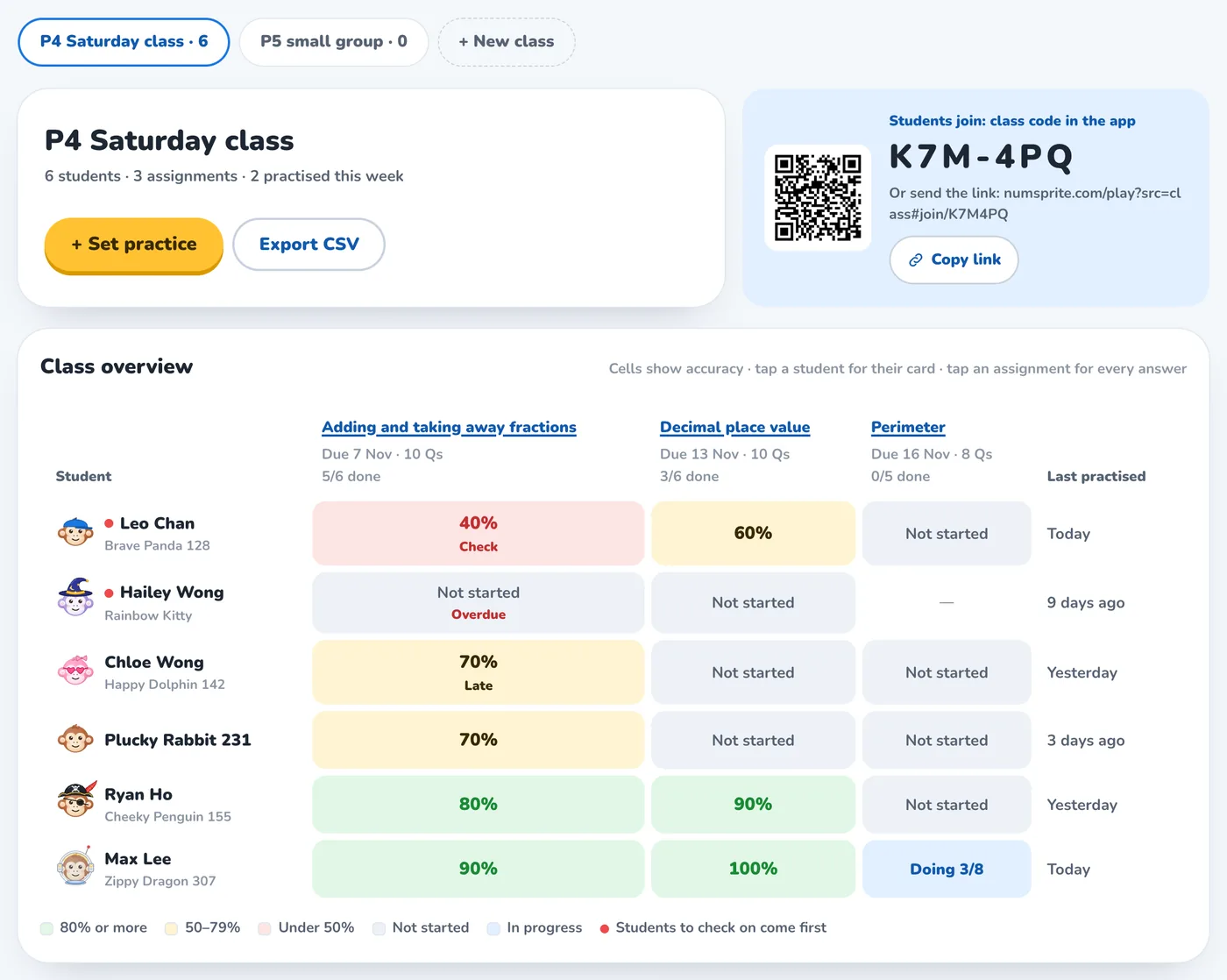
| Class overview | Each student's accuracy by topic, coloured 80%+, 50–79% and under 50%, those to watch first | Seeing at a glance who needs help |
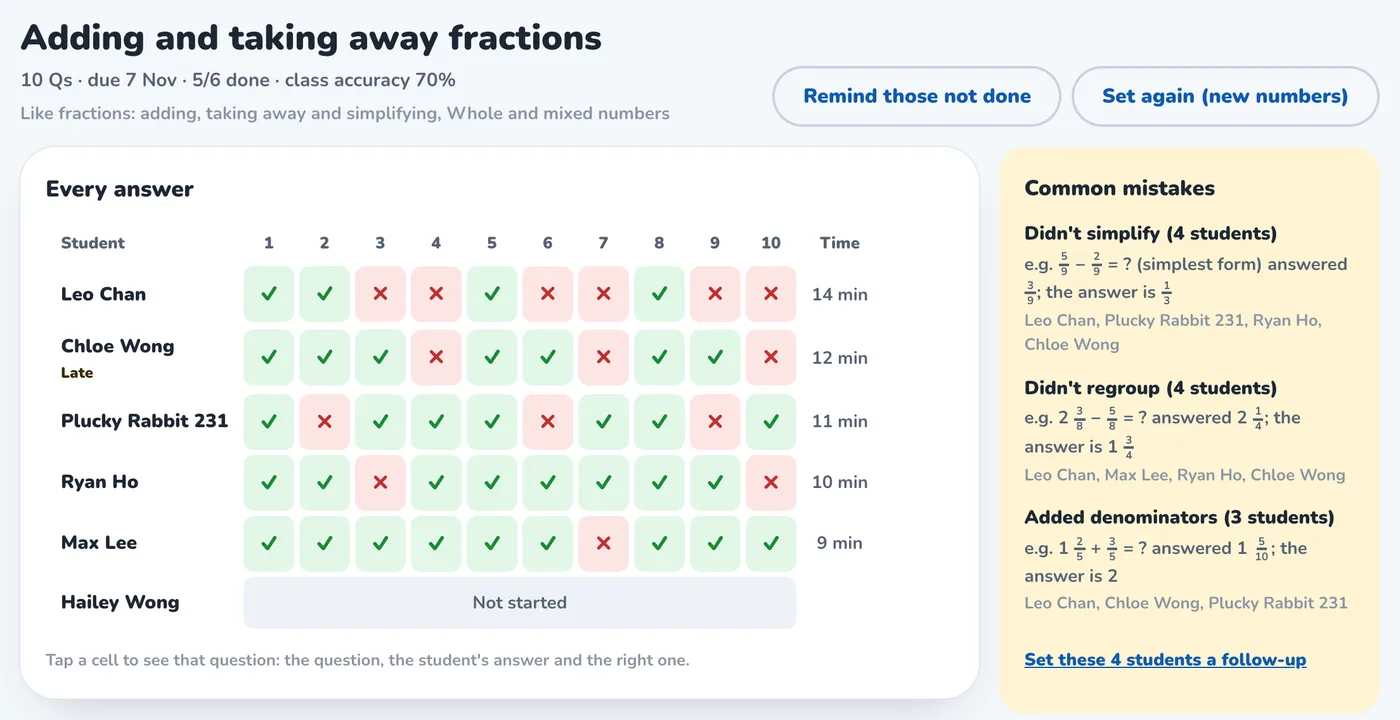
| Common mistakes | The question types most of the class got wrong | Reteaching that point next lesson |
| Each practice's results | Results by question, common slips, the hardest question | “Set again (new numbers)”, or follow-up practice for those who got it wrong |
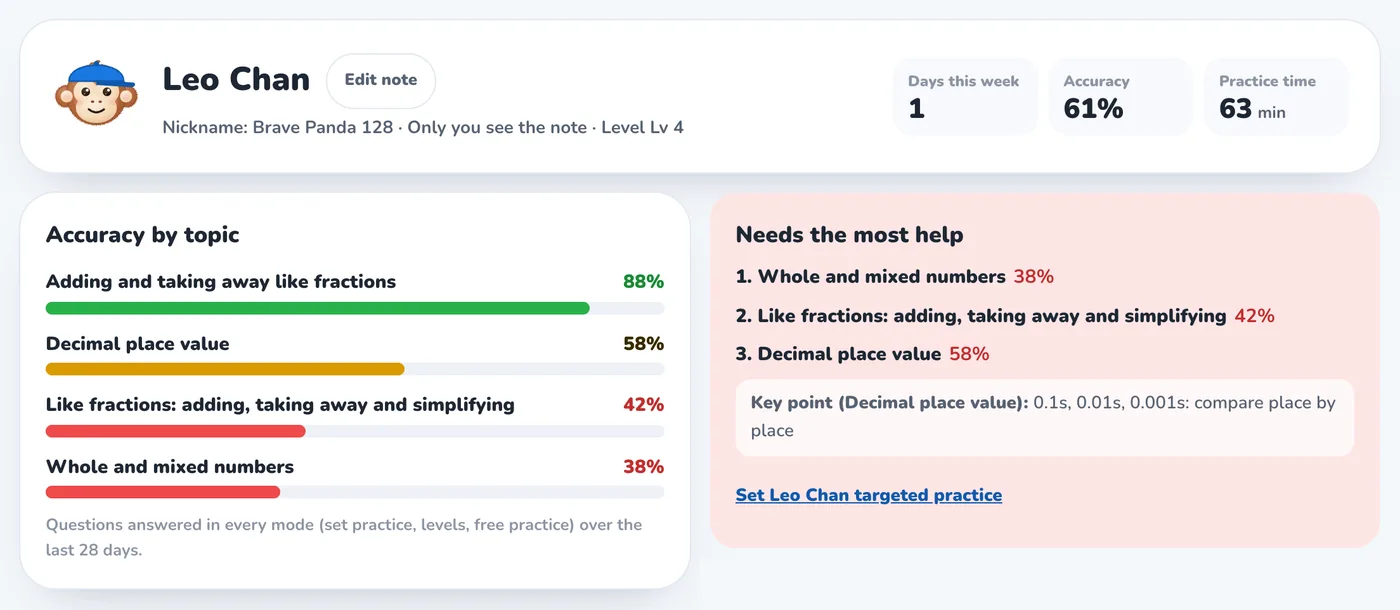
| Student card | This week's practice, accuracy, accuracy by topic, where they need help most, recent mistakes | One-to-one follow-up and parents' evenings |
| Export CSV | The class's data | Your school's records |
For students who haven't finished, “Remind those not done” copies a message to send. On a student card, “Edit note” adds a name only you see.
5. The live class game
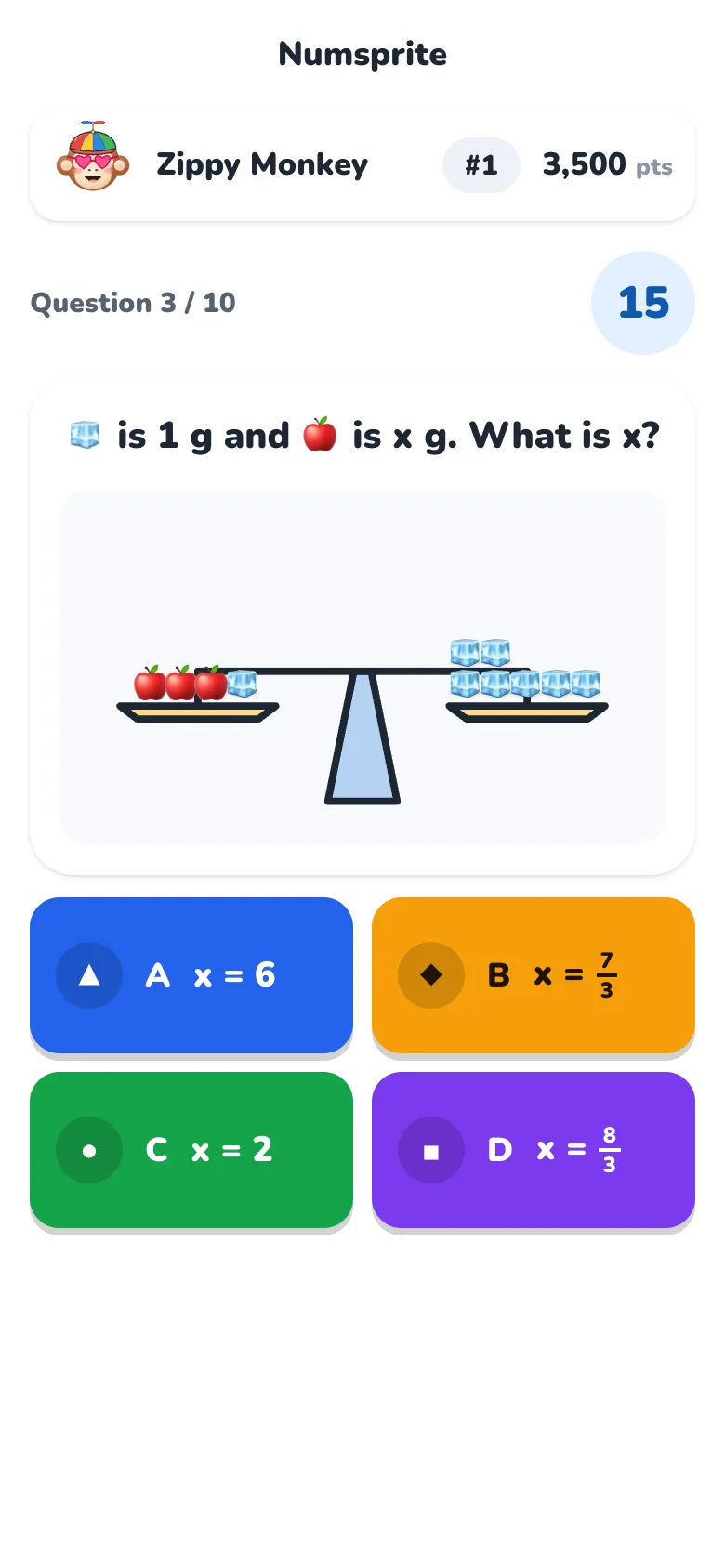
Students need no account: a phone, tablet or computer browser is enough.
- 1On numsprite.com/teacher tap “Start a live game” (from a class, or “Start without a class”) and project it.
- 2Choose topics, how many questions and the time for each, then “Create game”.
- 3Students open numsprite.com/live, type the code on screen or scan the QR code, enter a name and pick a monkey. You can remove an unsuitable name from the big screen.
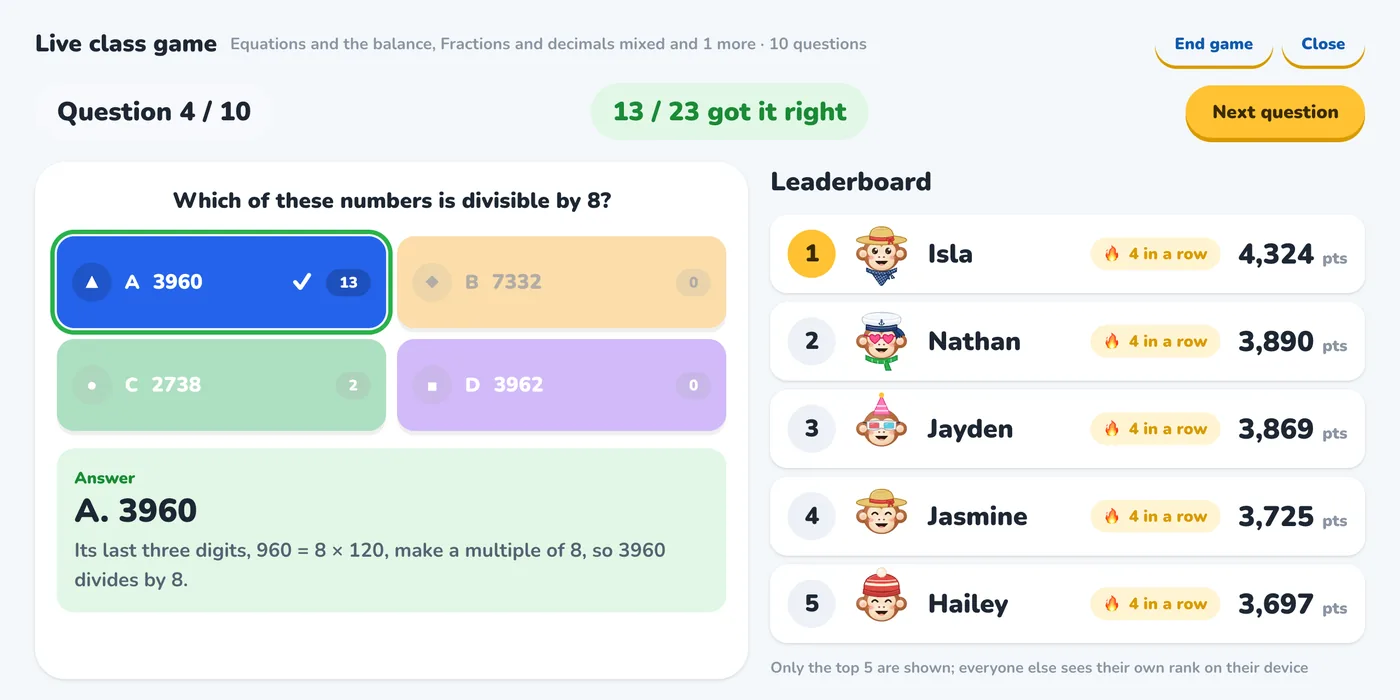
- 4Tap “Start game”. Each question shows how many have answered; then the answer, the explanation and how many got it right; then the top five.
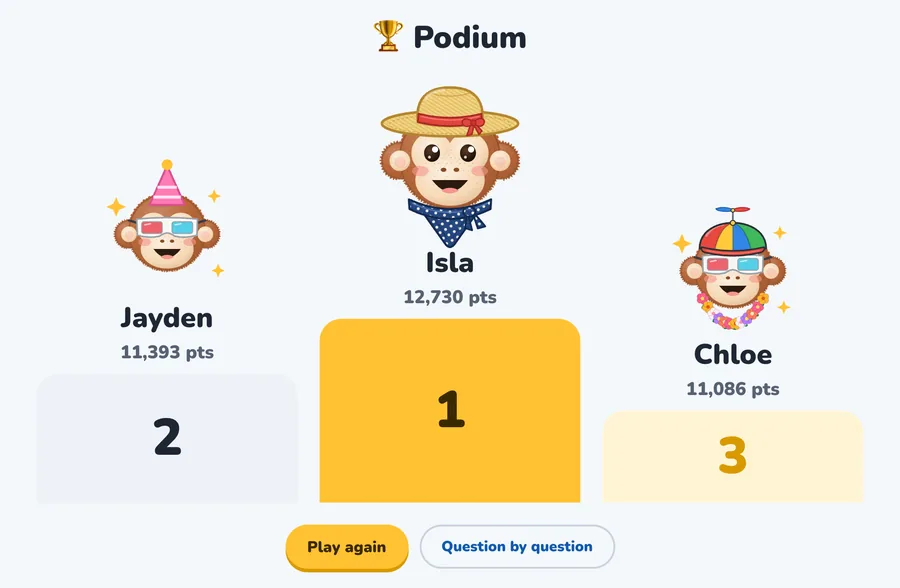
- 5After the last question comes the podium, then “Play again” or “Question by question”.
Faster answers score more, with a bonus for a run of right answers. Music can be switched on or off at the top right.
6. Ways to use it in lessons
| When | What to do |
|---|---|
| Warm-up | A 5-question class game on last lesson's topic |
| After a new topic | Set 10 basic questions, due in a week |
| Before a unit test | Set practice with challenges, then reteach from Common mistakes |
| Individual support | Check where a student needs help most and set them follow-up practice |
| Homework on paper | Print the worksheet linked to the practice; answers and steps are on the last page |
7. Privacy and data
- Students join with nicknames; no real names are collected.
- Class-game names and answers are deleted within 2 days.
- “Class settings” → “Delete this class” removes the class for good; it can't be undone.